Why a Tablet Canva Mockup Template Is a Must-Have for Modern Visual Storytelling
In today’s visually saturated world, the way you present your content can make or break your message. Whether you are a seasoned designer, a small business owner, a teacher, or a content creator, you have likely felt the pressure to make your digital work stand out. Enter the tablet Canva mockup template — a simple yet powerful tool that has quietly transformed how people showcase apps, websites, presentations, and portfolios. But what exactly is it, and why has it become such an essential asset for effective communication?
This article will walk you through everything you need to know about tablet Canva mockup templates: what they are, why they matter, how to use them in real-world scenarios, and how they can elevate your projects — whether you are designing a business pitch, an educational module, or a creative portfolio. By the end, you will not only understand the tool but also feel ready to use it with confidence.
What Exactly Is a Tablet Canva Mockup Template?
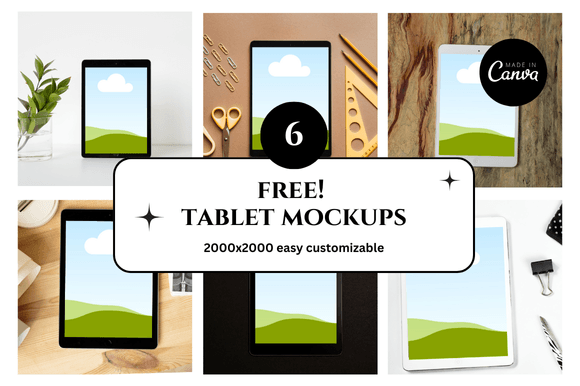
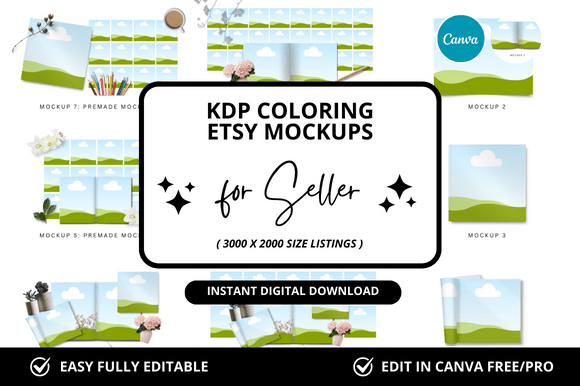
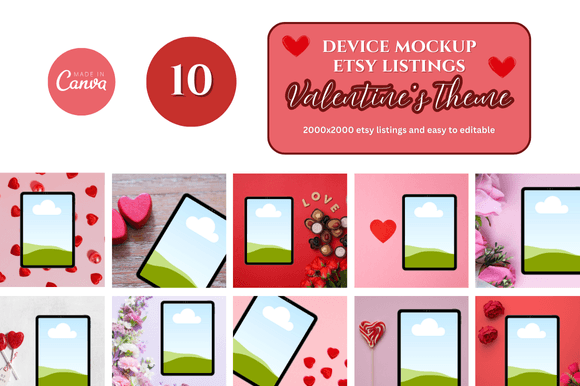
At its core, a mockup is a realistic representation of how a design will look when placed in a real-world context. A tablet Canva mockup template is a pre-designed, editable file available within Canva (or designed for use in Canva) that displays your artwork, screenshot, or graphic on a realistic tablet device — often shown at an angle, held in a hand, or placed on a desk alongside other objects. The template handles all the perspective, lighting, and shadows so you don’t have to.
Instead of showing a flat, lifeless screenshot, you drop your design into the template, and instantly it appears as if someone is holding a tablet displaying your work. This simple shift from flat to contextual can dramatically change how your audience perceives your content.
Key Components of a Tablet Mockup Template in Canva
- Device frame: A realistic outline of a tablet (like an iPad or Samsung Galaxy Tab) with rounded corners, bezels, and a screen area.
- Perspective and angle: The tablet is often shown at an angle — flat, tilted, or held — to mimic real-world photography.
- Background scene: Many templates include a subtle background like a desk, hands, or a natural setting to add depth.
- Editable screen area: A clearly marked placeholder where you drag and drop your own image, screenshot, or design.
- Shadows and reflections: Pre-built lighting effects that make the mockup look photorealistic.
Canva itself offers a library of such templates, and many independent designers also create and sell tablet mockup templates specifically formatted for Canva’s drag-and-drop interface. This accessibility makes them a favorite for non-designers who still want professional results.
Why Tablet Mockups Matter in Modern Design and Communication
To understand the significance of a tablet Canva mockup template, consider how people consume content today. We live in an era of screens. Whether it’s a website, a mobile app, a digital magazine, or an online course, almost every piece of content is viewed on a device. Presenting that content in a flat, isolated screenshot often feels disconnected and uninspiring.
By placing your design inside a realistic tablet, you achieve several important goals:
- Contextual relevance: The viewer immediately understands that your design is meant to be seen on a device. It becomes relatable.
- Professional polish: A mockup signals that you have taken the time to present your work thoughtfully, which builds trust and credibility.
- Emotional connection: Seeing a design in a hand or on a desk makes it feel tangible and real, even though it is digital.
- Improved storytelling: A mockup helps you tell a story about how your design is used, rather than just showing what it looks like.
In short, a tablet mockup template transforms a simple screenshot into a visual story.
Practical Applications Across Different Fields
The versatility of tablet Canva mockup templates means they are useful far beyond traditional graphic design. Here is how different people can benefit from them in their daily work and projects.
For Business and Marketing Professionals
Business owners and marketers often need to showcase digital products, apps, or websites in presentations, pitch decks, social media posts, and advertising. A tablet mockup can help you present your new mobile app in a way that feels aspirational and polished. Imagine pitching to investors with a slide that shows your app running on a tablet held by a user — the impact is far stronger than a plain screenshot. Similarly, for social media content, mockups generate higher engagement because they look more like professional photography.
For Educators and Course Creators
If you create online courses, e-books, or educational resources, a tablet Canva mockup template can help you demonstrate how your content appears on a device. For example, you can show a sample page of your digital workbook displayed on a tablet screen. This helps potential students visualize the learning experience before they enroll. Teachers can also use mockups in presentations to show students what an educational app looks like in practice.
For Creative Professionals and Designers
Designers, illustrators, and photographers use mockups to build stunning portfolios. Instead of showing a flat image of a website design, you can present it on a tablet within a beautifully styled scene. This not only showcases the design itself but also demonstrates your attention to presentation details. Creative professionals often use mockups for client proposals, Behance projects, and Instagram portfolios to communicate a polished, cohesive aesthetic.
For Content Creators and Social Media Managers
Social media managers frequently need to create graphics that promote digital content. A tablet mockup can be used to highlight a new blog post, a YouTube video thumbnail, or a downloadable resource. The mockup adds visual interest and helps the content feel more tangible, which can lead to higher click-through rates. Instagram feeds that use mockups often look more curated and professional.
How to Use a Tablet Canva Mockup Template: A Beginner-Friendly Overview
One of the greatest advantages of using a tablet mockup template in Canva is the simplicity. You do not need advanced design skills or expensive software. Here is a general step-by-step overview of how the process works, which should help you feel confident even if you have never used a mockup before.
- Choose a template: Browse Canva’s library or a marketplace for a tablet mockup template that fits your style. Look for one with a clear placeholder screen.
- Open the template in Canva: Most templates are fully editable in Canva’s free or pro version. You will see layers and groups that organize the different elements.
- Locate the screen placeholder: The template will have a designated area (often a rectangle or image layer) where you need to insert your own design. It might be labeled “your design here” or use a color placeholder.
- Upload your design: Drag and drop your screenshot, graphic, or photo onto the placeholder. Canva’s smart crop tool usually makes it easy to fit the image perfectly.
- Adjust if needed: Resize or reposition your design so it fills the screen area naturally. Most templates already have the correct perspective, so you only need minor tweaks.
- Customize the background: Many templates allow you to change the background color, add text, or include other elements like plants, coffee cups, or notebooks to enhance the scene.
- Download or share: Once you are satisfied, export your mockup as a PNG, JPG, or PDF. You can then use it in presentations, social media posts, websites, or print materials.
The entire process can take less than ten minutes once you are familiar with the interface. This speed and ease of use are why tablet Canva mockup templates have become a go-to solution for busy professionals.
Clearing Up Common Misunderstandings
As with any popular tool, a few misconceptions surround tablet mockup templates. Let’s address them so you can use the tool with clarity.
- “Mockups are only for designers.” This is not true. While designers certainly use them, anyone who presents digital content can benefit. Teachers, entrepreneurs, and marketers all use mockups effectively.
- “You need expensive software.” Canva is free to use, and many high-quality mockup templates are available at low or no cost. You do not need Photoshop or any advanced tools.
- “Mockups look fake.” A well-designed mockup template is photorealistic. The shadows, lighting, and perspective are carefully crafted to look like a real photograph. The key is choosing a quality template.
- “You need to be creative to use them.” The template does most of the work for you. Your main task is to insert your design. Even if you have no artistic background, you can produce professional-looking results.
- “Mockups are only for final presentations.” You can also use them for brainstorming, client feedback, or internal reviews. Seeing a design in context can spark better ideas and discussions early in the process.
How Tablet Mockup Templates Fit Into Broader Visual Communication Trends
The rise of tablet Canva mockup templates is part of a larger shift toward contextual content. Audiences today are bombarded with flat images and generic stock photos. What cuts through the noise is content that feels real, relatable, and purposeful. Mockups answer that need by placing digital work into a human setting.
Moreover, as remote work and digital products continue to grow, the ability to showcase a digital artifact in a compelling way becomes an essential skill. Whether you are sending a proposal to a client, publishing a case study online, or posting a portfolio on social media, a tablet mockup helps your work feel less like a file and more like an experience.
Another trend supporting the use of mockups is the demand for authenticity. Audiences respond well to visuals that do not feel overly produced. A tablet mockup that includes natural elements — like hands, a wooden desk, or soft lighting — can convey warmth and approachability. This is particularly valuable for brands that want to seem trustworthy and human.
Tips to Get the Most Out of a Tablet Canva Mockup Template
To truly harness the power of these templates, consider the following practical advice:
- Choose the right template for your audience. A sleek, modern tablet mockup might suit a tech startup, while a warmer, more casual mockup could be better for a lifestyle brand or educator.
- Use high-quality source images. The final result depends on the quality of the design you insert. Use sharp, well-lit screenshots or graphics for the best effect.
- Keep the scene uncluttered. While it is tempting to add many props, a clean background helps your design remain the focal point. Sometimes less is more.
- Consistency matters. If you use mockups across multiple pages or posts, try to maintain a consistent style (same angle, same background tone) to build a cohesive visual identity.
- Experiment with angles. Different templates offer different perspectives — flat lay, held in hand, or angled on a desk. Try a few to see which best communicates your message.
- Add supporting text thoughtfully. Canva allows you to layer text over or near the mockup. Use this to add context, such as a headline or call-to-action, but keep the text minimal to avoid overwhelming the scene.
Conclusion: From Flat to Fantastic
The tablet Canva mockup template is more than a design shortcut — it is a strategic tool for communication. By transforming flat screenshots into context-rich visual stories, it helps you connect with your audience on a deeper level. Whether you are pitching a business idea, sharing a creative project, or building an educational resource, a well-placed mockup can elevate your work from ordinary to memorable.
And the best part? You do not need to be a professional designer to use one. With Canva’s accessible platform and the wide availability of high-quality templates, anyone can create polished, realistic tablet mockups in minutes. As digital content continues to dominate our lives, learning to present it effectively is a skill worth developing. So why not give it a try? Find a template, drop in your design, and see how a simple frame can change the entire story your visuals tell.
Remember: in a world of endless scrolling, context is everything. Let your work be seen not just as an image, but as an experience.