Webinar Canva Template: A Practical Guide to Evaluating Its Fit for Your Needs
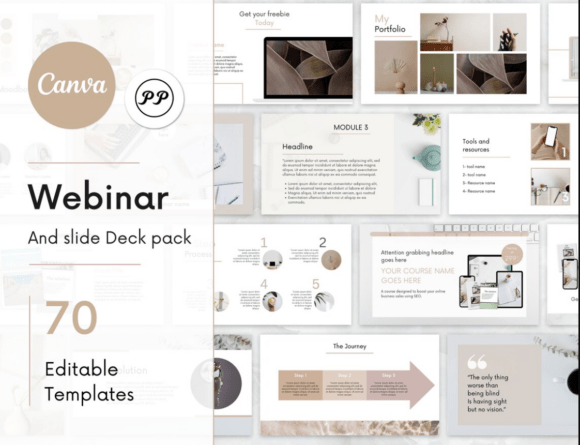
If you have spent any time preparing a webinar, you know that the visual design can be just as time-consuming as the content itself. A Webinar Canva Template is a pre-designed slide deck or promotional graphic set built within Canva, tailored specifically for hosting live or recorded webinars. These templates typically include title slides, speaker introduction pages, agenda layouts, content slides, Q&A frames, and closing calls to action — all styled consistently so you can customize them quickly without starting from scratch.
This article is written for anyone researching, comparing, or deciding whether to use a Webinar Canva Template for their next online event. Rather than simply listing features, we will focus on evaluation: what these templates actually deliver, where they fall short, and how to decide if they align with your goals.
What a Webinar Canva Template Actually Provides
At its core, a Webinar Canva Template is a time-saving asset. Canva is a web-based graphic design platform known for its drag-and-drop interface and extensive library of stock photos, icons, and fonts. A webinar template within Canva is simply a pre-made file that you duplicate and edit. The template itself may be free, part of a Canva Pro subscription, or sold by third-party designers through marketplaces.
These templates typically include multiple slide formats designed to cover the flow of a typical webinar: a waiting screen, introduction, learning objectives, main content sections, case study or demonstration slides, poll or engagement slides, and a final summary with a call to action. Promotional assets such as social media graphics, email headers, and landing page mockups are sometimes bundled as well.
The key distinction is that you are not designing from scratch. The layout, color palette, typography, and visual hierarchy are already established. Your job is to replace placeholder text and images with your own content.
Why People Consider a Webinar Canva Template
Interest in these templates typically arises from several practical pressures. First, time constraints are common among webinar hosts — especially solo entrepreneurs, small marketing teams, educators, and consultants who manage multiple responsibilities. Creating a polished slide deck from scratch can take hours or even days. A template reduces that to a fraction of the time.
Second, not everyone has a background in visual design. Crafting slides that are both attractive and readable requires an understanding of layout, contrast, font pairing, and visual balance. A well-made Webinar Canva Template offers a professional starting point without requiring design skills.
Third, consistency matters. A webinar that uses mismatched fonts, clashing colors, or inconsistent spacing can distract from the message. Templates enforce visual coherence across every slide, which helps maintain audience focus.
Fourth, Canva itself is accessible. It runs in a browser, offers real-time collaboration, and has a free tier. That lowers the barrier for individuals and small teams who may not have access to premium design software like Adobe Illustrator or professional presentation tools like PowerPoint with advanced design capabilities.
Evaluating the Benefits Objectively
The most tangible benefit of using a Webinar Canva Template is speed. With a solid template, you can go from blank document to a complete slide deck in under an hour, assuming your content is already prepared. The drag-and-drop editing means you do not need to learn complex software. You simply click on text boxes, update the wording, and swap out placeholder images with your own.
Another benefit is flexibility. Because Canva templates are fully editable, you can change colors to match your brand, adjust fonts, move elements around, or delete slides you do not need. This is different from a locked PDF or a rigid PowerPoint theme where customization options are limited.
Cost is also a factor. Many Webinar Canva Templates are available for a one-time fee between $10 and $30, or included in a Canva Pro subscription (around $13 per month). Compared to hiring a professional designer — which could cost hundreds of dollars per deck — templates offer significant savings.
However, it is important to be realistic about what these benefits do not include. A template cannot generate your content, structure your presentation logic, or adapt to your specific audience's needs. It is a visual container, not a content strategy.
Tradeoffs and Limitations to Consider
One of the most common tradeoffs is originality. Because a Webinar Canva Template is sold to many users, there is a chance that your audience may have seen the same design used in another webinar. While this is unlikely for small or niche audiences, it is worth considering if brand distinctiveness is a priority for you.
Another limitation is design quality variation. Not all templates are created equal. Some are thoughtfully designed with clear visual hierarchy and accessible contrast ratios. Others prioritize aesthetics over readability — for example, using light text on a light background, or decorative fonts that are difficult to read on screen. Always preview a template as a slide show before committing to it.
Customization depth is also constrained by Canva's platform. While Canva offers a wide range of editing options, it is not as powerful as dedicated presentation software when it comes to advanced animations, embedded video timelines, or interactive elements. If your webinar relies heavily on complex transitions or custom interactivity, a Canva-based template may feel limiting.
Additionally, exporting from Canva can involve tradeoffs. Free accounts export at lower resolution, and some animations may not carry over to PowerPoint or Google Slides formats. If you need to present directly from Canva, you will need a stable internet connection and a device that runs the platform smoothly.
Expectations for the User Experience
Working with a Webinar Canva Template is generally straightforward, but there is a learning curve if you are new to Canva. You will need to understand how to navigate layers, group and ungroup elements, and use the text and image tools. Most templates come with instructions, but the level of detail varies.
Editing within Canva is intuitive compared to professional design tools, but it is not instant. If you have a large deck — say 40 or more slides — you may find yourself repeating the same edits across multiple slides. Canva does offer a "copy style" feature, but it is not as seamless as using master slides in PowerPoint or Google Slides.
Collaboration can be smooth if your team members also have Canva accounts. Multiple people can edit a template simultaneously, and comments can be added directly on the canvas. However, version control can become messy if several people are making changes without clear communication.
Situations Where a Webinar Canva Template Is a Strong Fit
These templates are especially well-suited for solo professionals, freelancers, consultants, and small business owners who host webinars regularly but do not have a dedicated design team. If you are producing a webinar once a month or less, and your primary goal is to deliver content cleanly and professionally, a template gives you a reliable foundation without ongoing investment.
They are also a good fit for educators, trainers, and coaches who need to create slide decks for multiple courses or live sessions. A single template can be reused and re-themed by swapping out colors and images, which saves time across multiple events.
Nonprofit organizations and community groups with limited budgets can benefit as well. Many free or low-cost Webinar Canva Templates are available, and Canva's free tier covers most basic needs. This allows organizations to produce visually coherent webinars without allocating funds to design software or freelance designers.
Another strong use case is rapid prototyping. If you are testing a webinar idea and want to get a visual draft together quickly before investing in a full design, a template lets you iterate fast. You can show a rough version to stakeholders or test it with a small audience before refining the design later.
When Alternatives Are Worth Considering
If brand distinctiveness is a high priority — for example, if you are a large company with strict brand guidelines or a public figure whose visual identity is closely tied to your reputation — a generic template may not be sufficient. In that case, a custom-designed deck from a professional designer or an in-house team would better serve your needs.
Similarly, if your webinars are highly interactive or technically complex, you may outgrow Canva's capabilities. Webinars that involve live polling with custom graphics, real-time data visualization, or embedded software demos may be better served by presentation tools like PowerPoint, Keynote, or Google Slides, which offer tighter integration with other software.
For teams producing a high volume of webinars — several each week — a template might save time initially, but the cumulative editing effort can still be significant. In that scenario, investing in a branded master slide deck in PowerPoint or Google Slides (with proper master slide functionality) could be more efficient in the long run. Those tools allow you to change a single master slide and have updates propagate across the entire deck automatically.
Another alternative is to use a dedicated webinar platform that includes built-in presentation tools, such as Zoom's whiteboard or WebinarJam's slide builder. These tools are less design-focused but reduce the need to export and upload slides separately.
Practical Decision-Making Insights
To decide whether a Webinar Canva Template aligns with your goals, start by asking yourself what your primary constraint is. If it is time, a template is likely a good solution. If it is brand consistency across a large organization, a custom approach may be better. If it is cost, a template offers the best value.
When evaluating a specific template, look beyond the preview images. Open the template in Canva and scroll through every slide. Check for placeholder elements that may be hard to replace — for example, complex layered graphics that require advanced Canva skills to edit. Test the text boxes to see if they resize automatically or if you will need to adjust layouts manually.
Also consider your distribution format. If you plan to present live through screen sharing, the template's resolution and readability at large sizes matter. If you are sending a recorded version to attendees, consider how the slides look when viewed on mobile devices. Test a sample slide at different screen sizes if possible.
Finally, think about scalability. If you host one webinar, a single template purchase may be all you need. If you host several, ask whether the template is flexible enough to be reused with different themes, or whether you will need to buy new templates each time. Some designers offer template packs with multiple color variations, which can be a practical investment if you need variety.
Determining Alignment with Your Needs
A Webinar Canva Template is not a magic solution, but it is a practical tool for a specific set of circumstances. It works best when your content is ready, your design needs are moderate, and your priority is efficiency over uniqueness. It is less ideal when you need deep customization, advanced interactivity, or a highly distinctive brand presence.
For the majority of small to medium-scale webinar hosts, a well-chosen template offers a strong balance of cost, speed, and visual quality. The key is to evaluate templates critically, test them with your actual content, and be honest about your own design skills and time constraints. If a template helps you produce a clearer, more professional webinar that your audience can engage with more easily, then it has done its job.
Ultimately, the decision rests on how much control you need versus how much time you can afford. Understanding that tradeoff is the most useful insight you can carry into your choice.